
How to set up & manage my shipping profiles?
Correctly setting domestic and international shipping prices is one of the most important things you can do to increase your chances of selling on Artfinder.
How you set up your shipping profiles will depend on whether you are using our managed shipping service or whether you are choosing to handle shipping yourself.
How to set up your shipping profiles on managed shipping
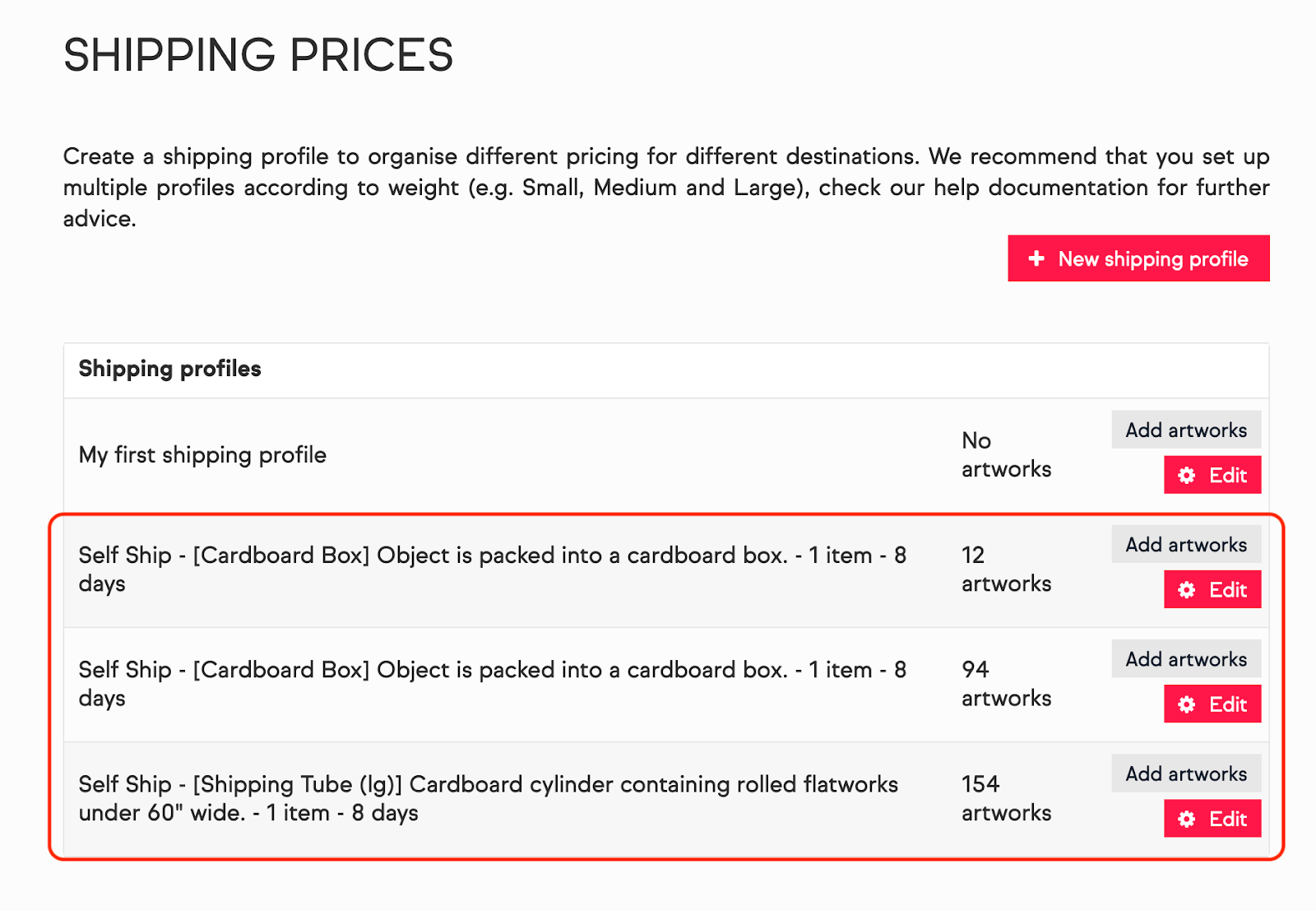
If you are an existing artist who has been opted into managed shipping, some shipping profiles will have been automatically created for you as per the below. We would however recommend that you check all artworks associated with the respective profiles to ensure that all of the information is correct.
If you wish to set up a new shipping profile, go to your Seller Portal > Settings > Shipping Prices > New shipping profile
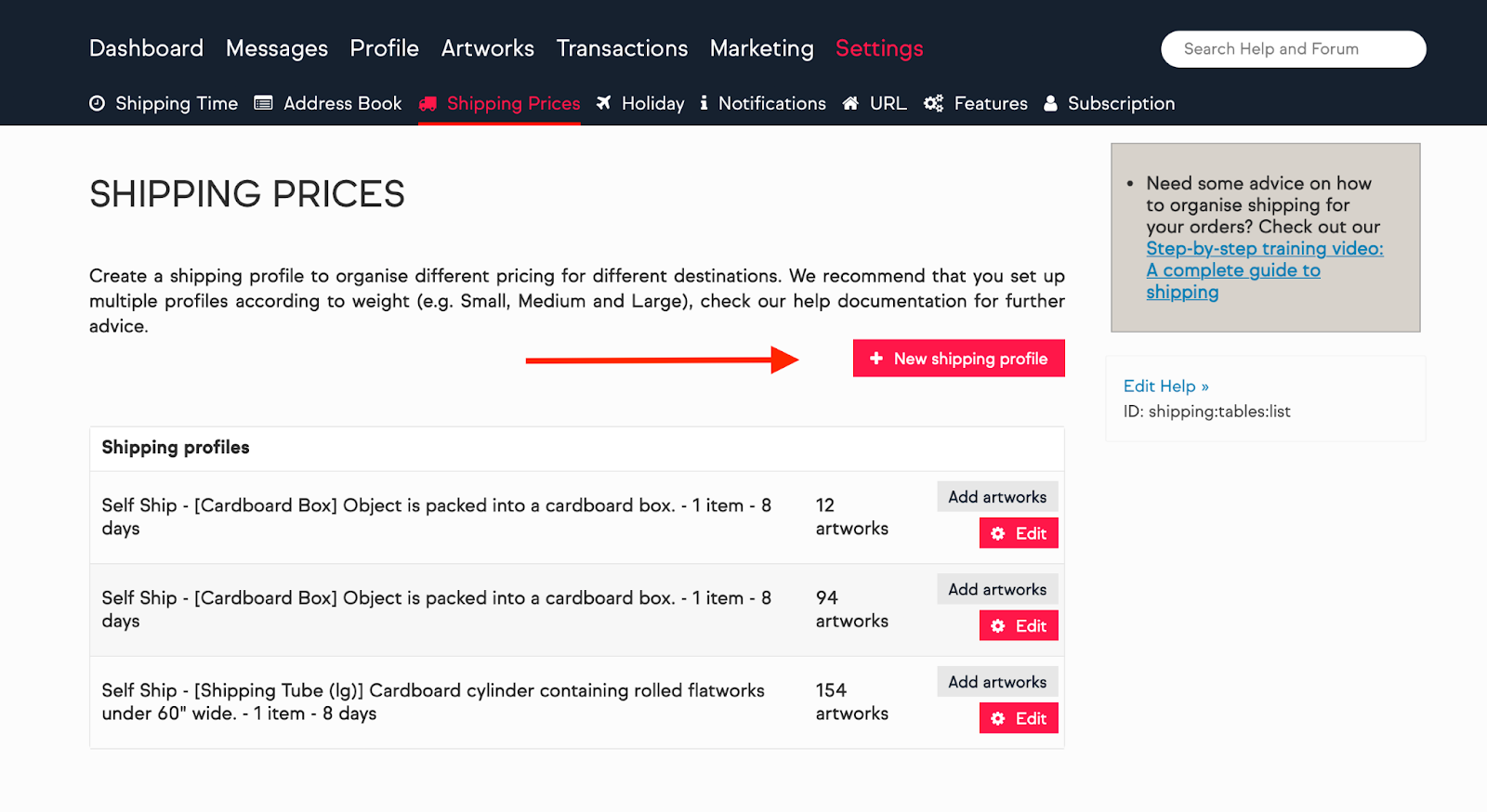
Once you have done so, you will need to specify some information about your shipping, such as:
- Maximum number of artworks that can be shipped together
- Choose the Arta managed shipping option (this is called Self-ship, but it is a managed shipping service whereby you package artworks, and we provide you with a pre-paid label)
- Packaging Type - you can choose from a variety of types of packaging, such as cardboard boxes, shipping tubes, crates etc. We’d also recommend that you consult our Arta packaging guidelines.
- Days to prepare for shipping - this will be the number of days it takes you to get the artwork ready to ship
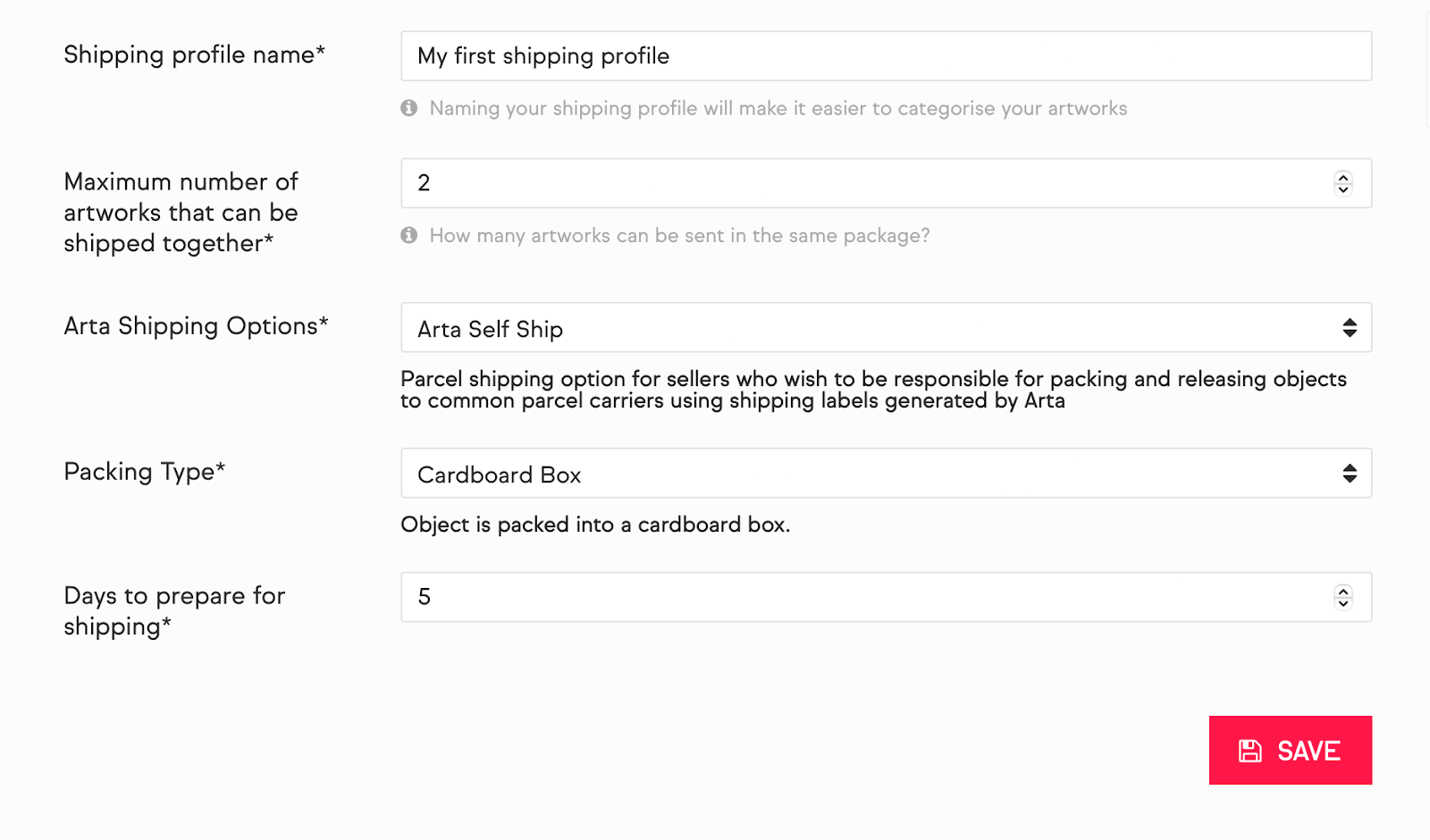
Once you have specified the above, click on “Save” and this will create your new shipping profile to which you can associate new artworks.
How to set up your shipping profiles if you are not on managed shipping
a. Take the following steps to get to your Shipping Profiles: Dashboard Icon > Settings > Shipping Prices > New shipping profile
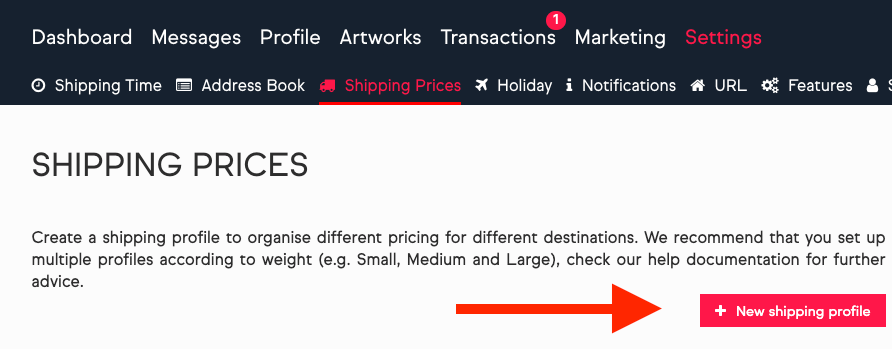
b. Give your shipping profile a name (e.g. Small Canvas). This is useful if you are selling different types of artworks which vary in shipping costs. You can set up one profile for prints, for example, and another for bronze statues. Choose a simple and memorable name for each profile, for example ‘Print Shipping Rates’ or ‘Painting Shipping Rates’ (or even 'Small', 'Medium' and 'Large'). You will then be able to select which profile to apply to each individual artwork.
c. State how many artworks can be shipped together for the same price - if you're not sure, read this Combined Shipping article.
d. Hit 'SAVE' and pat yourself on the back, you've made a start!
How to manage your shipping profile?
1. Domestic shipments
Under “Shipping to”, you will see your country of residence, for which you will be able to set the cost of shipment for all orders that will be shipped domestically.
If you are unsure what sort of price to set, read this article, which suggests some couriers that offer quotes - What Courier should I Use?
- International shipments
You will also need to set up the international destinations to which you are happy to ship!
Feel free to add some more destinations by clicking the '+ Add another destination' button. The most popular destinations are the UK, the United States, and Europe - or you can even select Global if you want to cover all your bases!
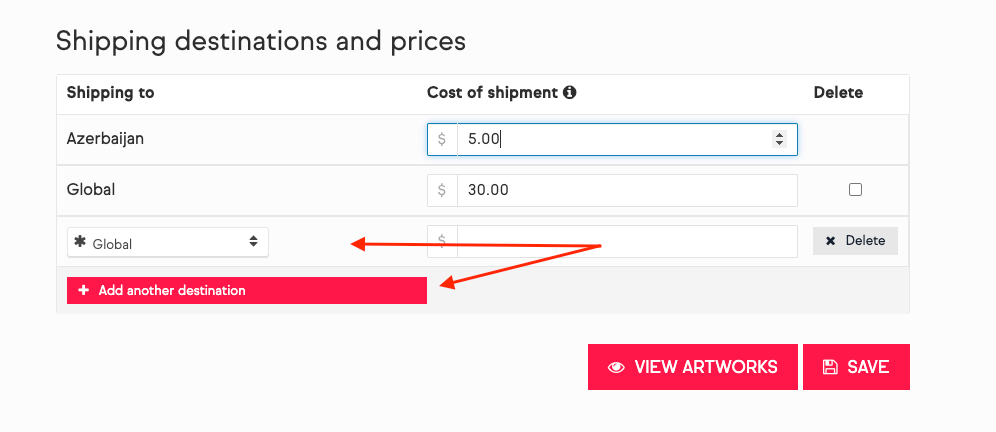
Removing a destination
You can also remove a destination by clicking the “Delete” button on the right-hand side of the destination. Please note that it will not be possible to remove your country of residence from the shipping table!
Multiple shipping profiles
You can set up more than one shipping profile on your account, in fact, we strongly recommend it! This is useful if you are selling different types of artworks which vary in shipping costs. You can set up one profile for prints, for example, and another for bronze statues.
How can I delete a shipping table?
To delete a shipping profile you must first ensure that it is not linked to any artworks (this can only be achieved through the Edit artwork page.)
Once you have dissociated it with any/all artworks, visit Dashboard Icon → Settings → Shipping Prices → Edit and you should find a red Delete button towards the top of the page.
Note: It is not possible to delete a shipping profile if it has been designated as default.